發表文章

目前顯示的是有「Microbit」標籤的文章

MakeCode Microbit 雙按鈕PK遊戲
圖片
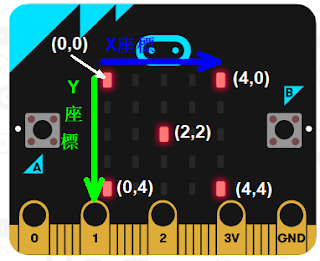
  LED 矩陣座標 首先要了解 Microbit LED 矩陣座標,由左到右的水平方向為稱為 X座標(下圖的藍色箭頭) ,由上到下的垂直方向稱為 Y座標(下圖的綠色箭頭) 。左上角白色箭頭所指的座標為(0,0),而正中央座標為(2,2)。 步驟一:建立一個新變數,名稱為 「球」 步驟二: 將 「球」 的起點放在正中央(如下圖) 步驟三: 按鈕A按下時, 「球」 往左移(-1) 步驟四: 按鈕B按下時, 「球」 往右移(1),請思考如何做? 步驟五: 當 「球」 碰到最左邊邊緣時(x=0) 步驟六: 當 「球」 碰到最右邊邊緣時(x=4) ,請思考如何做? 步驟七: 自動判斷勝負 提示判斷球的座標在那兒是按鈕A獲勝,請思考如何做? 範例連結: https://makecode.microbit.org/ _HKH8H6cM7ARu 若您覺得文章寫得不錯,請點選文章上的廣告,來支持小編,謝謝。 If you like this post, please click the ads on the blog or  buy me a coffee . Thank you very much.

Python 動手做「Micro:bit」Unit 2:按按看

圖片
本篇文章會使用 Mu Code Editor 來開發 micro:bit 的應用程式, Mu Code Editor 是一個給Python初學者的撰寫Python程式碼的軟體工具,此軟體的操作方式可參考 Mu Code Editor 官方的教學文章: https://codewith.mu/en/tutorials/ 。 此文的上一篇為  Python 動手做「Micro:bit」Unit 1:點亮 LED 按鈕(Buttons)的原理與應用( Behind the MakeCode Hardware - Buttons on micro:bit ) 我們將要製作的功能如下: 1. 按下按鈕 A 時,顯示大寫的字母 A。 2. 按下按鈕 B 時,顯示大寫的字母 B。 3. 按下按鈕 A + B 時,顯示愛心(Heart)。 功能的結果如圖: 按下按鈕 A 按下按鈕 B 按下按鈕 A + B https://makecode.microbit.org/  上的Blockly設計程式如下: 那先來試試用  https://makecode.microbit.org/  上所提供的Blockly程式轉換功能,請轉換成 Python: 將上圖的程式碼複製到 Mu Code Editor 上 讀者可以試著將此程式燒錄到 Microbit 板子上,程式執行結果可能不如預期喔。參考 https://microbit.org/get-started/user-guide/python/#buttons  與 https://microbit-micropython.readthedocs.io/en/v2-docs/tutorials/buttons.html 後,請讀者試著執行下面程式碼: 1 2 3 4 5 6 7 8 9 from microbit import * while True : if button_a . is_pressed() and button_b . is_pressed(): display . show(Image . HEART) elif button_a . is_pressed(): display . show( "A" )...

MakeCode Microbit 遙控機器人 (Microbit Remote-Controlled Robot)

圖片
本篇文章將講解如何製作一個簡易的遙控機器人,此篇文章所使用的機器人為【 麥昆智能小車 (Maqueen) 】。This post will build a simple remote car with Maqueen which is a micro:bit based robot platform for education. 一、功能如下(Game Design):   訊號說明(The communication way): 使用英文字母f、b、l、r、s 五個字母,對應動作為:f 為前進、b 為後退、l 為左轉、r 為右轉、s 為停止。Using the first letter of each action: f orward, b ackward, l eft, r ight, s top. That is, the letter f stands for forward. The letter b stands for backward, and so on.  遙控器(The controller) 按下 A + B 按鈕時,送出停止(stop)訊號。Sending a s top signal when button A and B are pressed. Microbit 板子向上傾斜時,送出前進f(forward)訊號。Sending a f orward signal when tilting the microbit front. Microbit 板子向下傾斜時,送出後退b(backward)訊號。Sending a  b ackward signal when tilting the microbit back. Microbit 板子向左傾斜時,送出左轉l(left)訊號。Sending a  l eft signal when tilting the microbit to the left. Microbit 板子向右傾斜時,送出右轉r(right)訊號。Sending a  r ight signal when tilting the microbit to the right. 車子(The car) 收到停止(stop)訊號時,車子停止。On receiving a sto...

MakeCode Microbit 遊戲設計:貓追老鼠遊戲(Microbit Game: Cat Chasing Mouse Game)

圖片
本篇文章將講解如何製作一個簡易追逐遊戲:【貓追老鼠】。 In this post, we're going to create a a simple chasing game: "cat chasing mouse", where you tilt the microbit to control a cat which is chasing a blinking mouse on the LED screen. 一、遊戲功能如下(Game Design):   遊戲時間一分鐘。One minute game. 遊戲開始時,貓在畫面正中央。The cat is at the screen center when the game on start. 老鼠不停閃爍,老鼠跑到隨機位置。The mouse is blinking and at random position on the screen. 板子往上傾斜時,貓往上移動。The cat move up when tilting the microbit front. 板子往下傾斜時,貓往下移動。The cat move down when tilting the microbit back. 板子往右傾斜時,貓往右移動。The cat move to right when tilting the microbit to the right. 板子往左傾斜時,貓往左移動。The cat move to left when tilting the microbit to the left. 貓捉到老鼠時,得一分,老鼠跑到隨機位置。 When the cat catches the mouse, the mouse runs to random position. The player scores 1 point. 二、積木程式(Blocks Code) 遊戲時間一分鐘。One minute game. 遊戲開始時,貓在畫面正中央。The cat is at the screen center when the game on start. 老鼠不停閃爍,老鼠跑到隨機位置。The mouse is blinking and at random position on the screen....

MakeCode Microbit 遊戲設計:簡易射擊遊戲(Microbit Game: Simple Shooting Game)

圖片
本篇文章將講解如何製作一個簡易射擊遊戲。 一、遊戲功能如下(Game Design): 砲台在畫面下方移動。The turret moves between the bottom of LED matrix. 按A鍵砲台燈向左移動。 The turret moves to left when button A is pressed. 按B鍵砲台燈向右移動。The turret moves to right when button B is pressed. 按A+B鍵發射子彈。Firing when button A and button B are pressed. 敵機隨機在最上方的位置出現。 The enemy moves between the top of LED matrix. 子彈打到敵機時,得一分。Score 1 point when the enemy is hit by a bullet. 二、積木程式(Blocks Code) 遊戲啟動時(On Start): 敵機隨機在最上方的位置出現。 The enemy moves between the top of LED matrix. 砲台在畫面下方移動。The turret moves between the bottom of LED matrix. 按A鍵砲台燈向左移動。 The turret moves to left when button A is pressed. 按B鍵砲台燈向右移動。The turret moves to right when button B is pressed. 按A+B鍵發射子彈。Firing when button A and button B are pressed. 子彈打到敵機時,得一分,。Score 1 point when the enemy is hit by a bullet. 三、結果(The Results) 影片(Demo Video): 請自由發揮額外功能,例如玩家生命等。 More Ideas examples: player's life...etc.  範例網址(Example Code): https://makecode.microbit.org/_EEAd7hdq8hav 若您覺得文章寫得不錯,請點選文章上的廣...

MakeCode Microbit 遊戲設計:「接雞蛋」(Microbit Game: Egg Catching)

圖片
小編曾做過 Scratch 遊戲:接雞蛋 ,而且最近剛好看到Youtube 上的影片: Micro:bit 創意遊戲:「接水果 」 。於是來教大家自己用Microbit來做一個玩玩吧。The blog post:  Scratch 遊戲:接雞蛋  created a egg-catching game. And there is a video on youtube:  Micro:bit 創意遊戲:「接水果 」 . So, this post will create a Microbit game: Egg Catching. 首先來分析影片中遊戲的功能有哪些: Game design: 角色「player」(就是玩家你囉),位在最下方的紅點。Player will be at (x, y) = (2, 4) when the game is started. 角色「egg」(從天而降的雞蛋),位於上方不停落下的紅點。Egg will be at (x, y) = (pick random 0 to 4, 0) when the game is started. A按鈕將「player」角色往左移動一格。When the A button is pressed, player moves to the left. B按鈕將「player」角色往右移動一格。When the B button is pressed, player moves to the right. 「player」角色接到「egg」角色時,會有動畫與音效,並得一分。When the player catches the egg, score 1 and perform some animation and play a melody. 雞蛋落到地面三次時,遊戲結束,並顯示Game Over,以及總得分。When the egg fall to the ground three times, the game is over. Show "Game Over" and total score on the screen. 製作步驟 Steps 步驟零:開啟 Makecode Microbit Editor (Step 0: open Makecode Microbit ...

Microbit 遊戲設計:誰是快手高手(Microbit Game Design: Who's The Fastest Clicker)

圖片
本篇文章將講解如何製作一個簡易的兩人按鈕競賽遊戲:誰是快手高手。 This article will create a simple two players microbit game: Who's the fastest clicker.  一、遊戲功能如下(Game Design): 遊戲開始時將球放在LED矩陣正中央的x,y座標(2, 2)上。Light up the LED at (2,2) when the game started. 按下A按鈕時,球往左移動。The ball moves to the left when the button A is pressed. 按下B按鈕時,球往右移動。The ball moves to the right when the button B is pressed. 碰到牆壁時,有兩種情況:There are two conditions when the ball hits the edge: 1. 左邊牆壁,球的x座標等於0時,球的y座標減 1 ,球的x座標設為4。Left edge: when the ball's x equals to 0, ball's y minus 1 and assign ball's x to 4. 2. 右邊牆壁,球的x座標等於4時,球的y座標加 1 ,球的x座標設為0。Right edge: when the ball's x equals to 4, ball's y plus 1 and assign ball's x to 0. 當球的座標為(0,0)或(4,4)時,遊戲結束。When the ball is in (0,0) or (4,4), the game is over. 二、積木程式(Blocks Code) 遊戲開始時將球放在LED矩陣正中央的x,y座標(2, 2)上。Light up the LED at (2,2) when the game started. 按下A按鈕時,球往左移動。The ball moves to the left when the button A is pressed. 碰到左邊牆壁,球的x座標等於0時,球的y座標減 1 ,球的x座標設為4。Left edge: w...

Microbit 遊戲設計:猜數字遊戲(Microbit: Number Guessing Game)

圖片
本篇文章將講解如何製作一個簡易的猜數字遊戲。 This post introduces how to create a simple number-guessing game with Microbit. 一、遊戲功能如下:The game functions: 遊戲一開始自動產生一個 0 - 9 的數字讓使用者猜猜看。Pick a random from 0 to 9 when the game starts.  A 按鈕使用者猜數字,每按一次則加 1。Plus one to user's guess when button A is pressed. B 按鈕使用者猜數字,每按一次則減 1。Minus one to user's guess when button B is pressed. A + B 按鈕比較結果,使用者猜對時,遊戲重頭開始。When button A and button B are pressed, check the result. If the user's guess is correct, the game restarts. 二、積木程式 The Blocks 先使用 Make a Variable 來建立兩個變數: answer 與 guess 。 Click  Make a Variable  to create two variables: answer  and  guess . 遊戲一開始自動產生一個 0 - 9 的數字讓使用者猜猜看。  Pick a random from 0 to 9 when the game starts.  A 按鈕使用者猜數字,每按一次則加 1。 Plus one to user's guess when button A is pressed. B 按鈕使用者猜數字,每按一次則減 1。 Minus one to user's guess when button B is pressed. A + B 按鈕比較結果,使用者猜對時,遊戲重頭開始。 When button A and button B are pressed, check the result. If the user's guess is correc...

Microbit 遊戲設計:抓鬼遊戲

圖片
本篇文章將講解如何製作一個簡易的抓鬼遊戲。遊戲中的鬼會在 25 個 LED 上移動,當鬼跑到正中央時(如下圖),按下按鈕 A 或按鈕 B 即可抓到鬼。 所需知識 一、LED 矩陣座標 首先要了解 Microbit LED 矩陣座標,由左到右的水平方向為稱為 X座標(下圖的藍色箭頭) ,由上到下的垂直方向稱為 Y座標(下圖的綠色箭頭) 。左上角白色箭頭所指的座標為(0,0),而正中央座標為(2,2)。 可以透過燈光的積木程式來了解, 練習點亮下圖的LED燈: 二、LED動畫製作 土法: 建立一個變數X,當作X座標;再建立另一個變數diff,用來控制要往右邊移動(當 diff 為 1 時),還是左邊移動(當 diff 為 -1時)。注意:在點亮下一個座標上的 LED 燈時,需要將之前的 LED 不點亮。 遊戲積木: 這個就容易許多了,請直接看下圖的積木程式。 而本文會使用 Microbit 裡的遊戲積木來製作。 遊戲一:水平方向移動 鬼水平方向移動 按下按鈕A時,判斷有沒有抓到鬼 遊戲一影片: 遊戲二:垂直方向移動 鬼垂直方向移動 按下按鈕A時,判斷有沒有抓到鬼 遊戲二影片: 遊戲三:左上右下方向移動 鬼左上右下方向移動 按下按鈕A時,判斷有沒有抓到鬼 遊戲三影片: 遊戲四:左下右上方向移動 鬼左下右上方向移動 按下按鈕A時,判斷有沒有抓到鬼 遊戲四影片: 可能可以增加的功能: 調整鬼移動的速度。 鬼隨機移動。 自由發揮。 若您覺得文章寫得不錯,請點選文章上的廣告,來支持小編,謝謝。 If you like this post, please click the ads on the blog or  buy me a coffee . Thank you very much.